top of page

VFS Student Tools
Hello students and other viewers! I'm Roman (GD 76, Rage Quit), and after graduating from VFS I was tasked with creating tools for students in the Game Design program to speed up production. My tools are written with Python and are designed to be student friendly in Maya. As of now, my tools are used primarily for animation and controller modification, but I have plans for rigging tools in the future. This article will take you through each tool and how to use it, and will be updated whenever new tools are introduced. If you have suggestions for new tools or feedback on current tools, please contact Jeff.

Introduction
All tools shown are currently in use by VFS students, tool icons and UI created by me
These tools are designed to be used with the VFS character rigs!
Feel free to use these tools with your own projects, but using them on a rig outside of the VFS style of rigging isn't guaranteed to work yet. These tools should be able to work on other rigs but if you want them to work for sure, please match them with VFS course content as closely as possible. Some tools are still a work in progress.
Note: Right now the VFS rigs have IK controllers not sharing mirror behavior, therefore extra buttons needed to be created for them. I'm currently working on making mirror animation tools that can work for both FK and IK regardless of mirror behavior.
Contents
Click on icons to be taken to their section.

VFS Controller & Animation Editor

FK Single Mirror

FK All Children Mirror

IK Single Controller Mirror


FK Single Inverse Mirror
FK All Children Inverse Mirror
IK Single Inverse Mirror
IK All Children Inverse Mirror

VFS Controller & Animation Editor

This is the current controller and animation editor. It can work with any imported animation that has an animated skeleton (for example, FBX files). With this tool, you can create FK controllers, modify the controllers, and modify imported animations.
What started off as just a simple Mixamo animation editor has begun to turn into a handy rigging tool. I'm currently adding more features to this editor, my planned updates include:
Mirror controllers
Move controllers
Rename controllers
IK controllers
All features are subject to change as this is updated.
This guide will show you examples of all settings being used.
Select button to be taken to controller tool
Import & Modify Animations
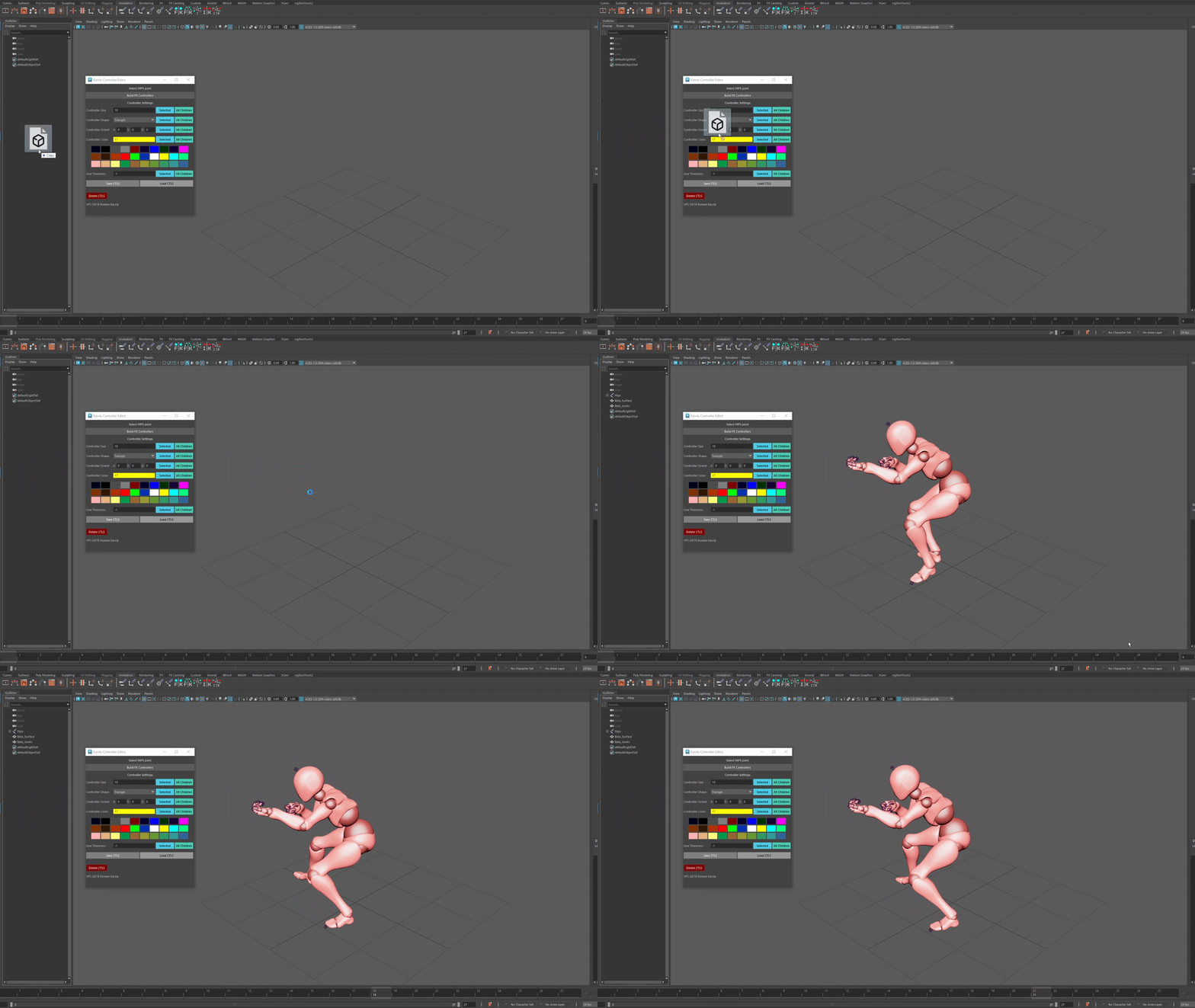
Import skeleton
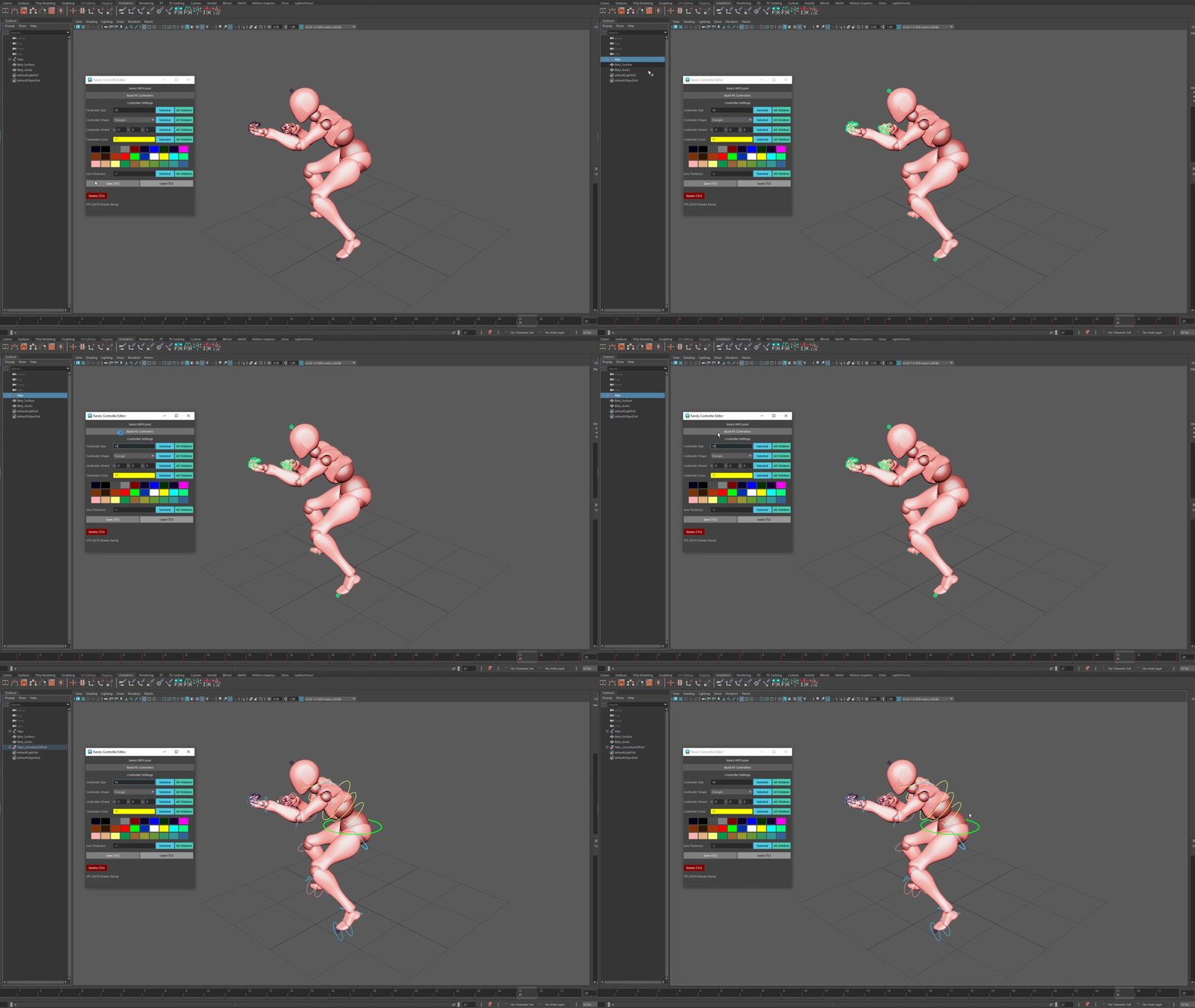
Select root joint (ex: Hips) and click "Build FK Controllers"
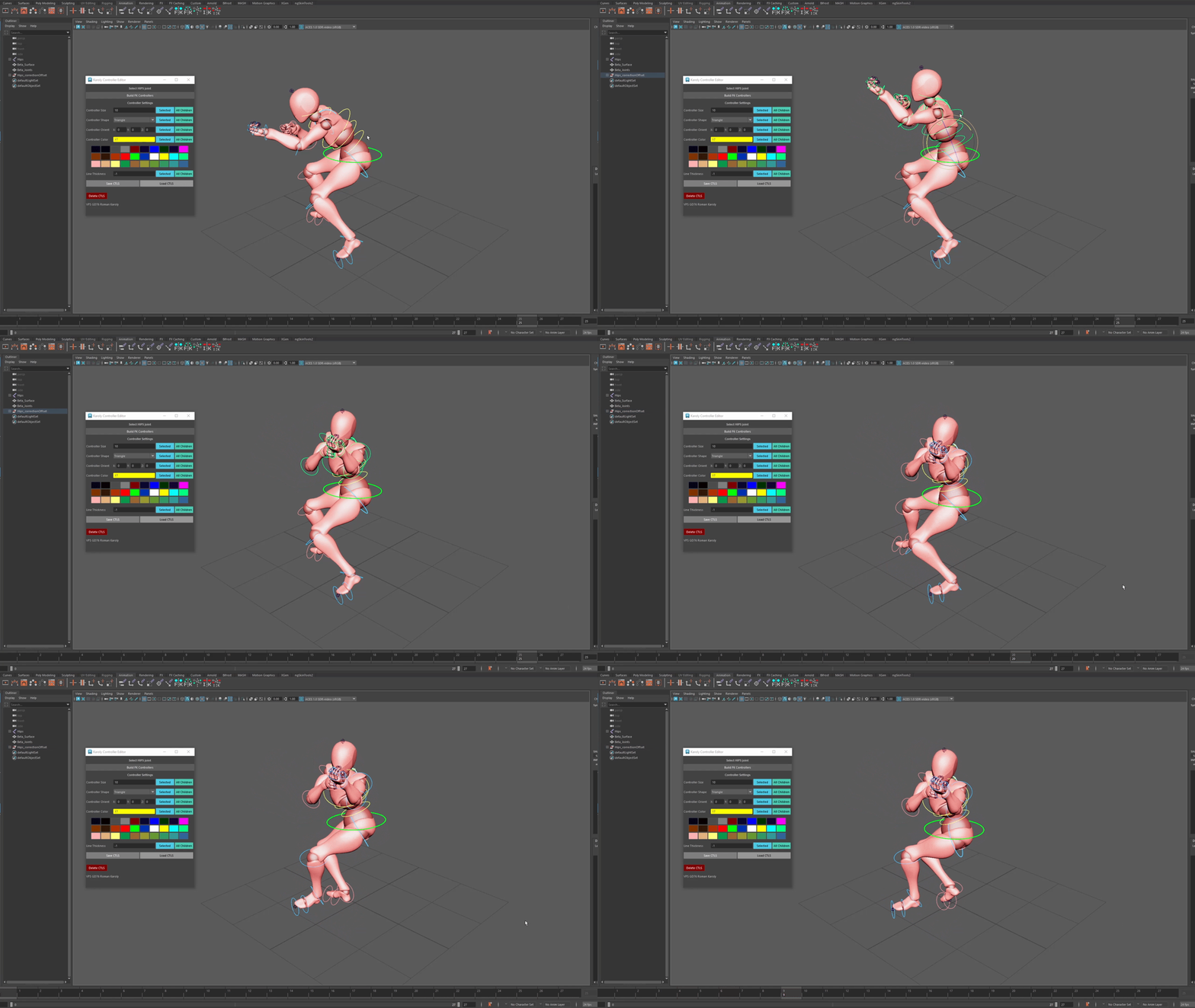
Modify animations
The "Build FK Controllers" tool can be used to build controllers on a character in T-pose as well as an animated skeleton! It works by selecting the skeleton root joint and clicking the button. It will then create a set of FK controllers that can be used to modify existing animations, like those imported from Mixamo. It is recommended to use an FBX file but anything with an animated skeleton should work. It is also recommended to clear any namespaces in the skeleton. Animation MUST come from keyframes on the skeleton itself, this will not copy animation from other controllers.
The resulting controllers can then modify animations without extra keyframes! For example, the spine can be rotated up, and the entire animation will play like normal with that offset.
Instructions:
1) Import skeleton
(ex: Mixamo FBX)
2) Select root joint
(ex: Hips)
3) Click "Build FK Controllers"
Controller Size
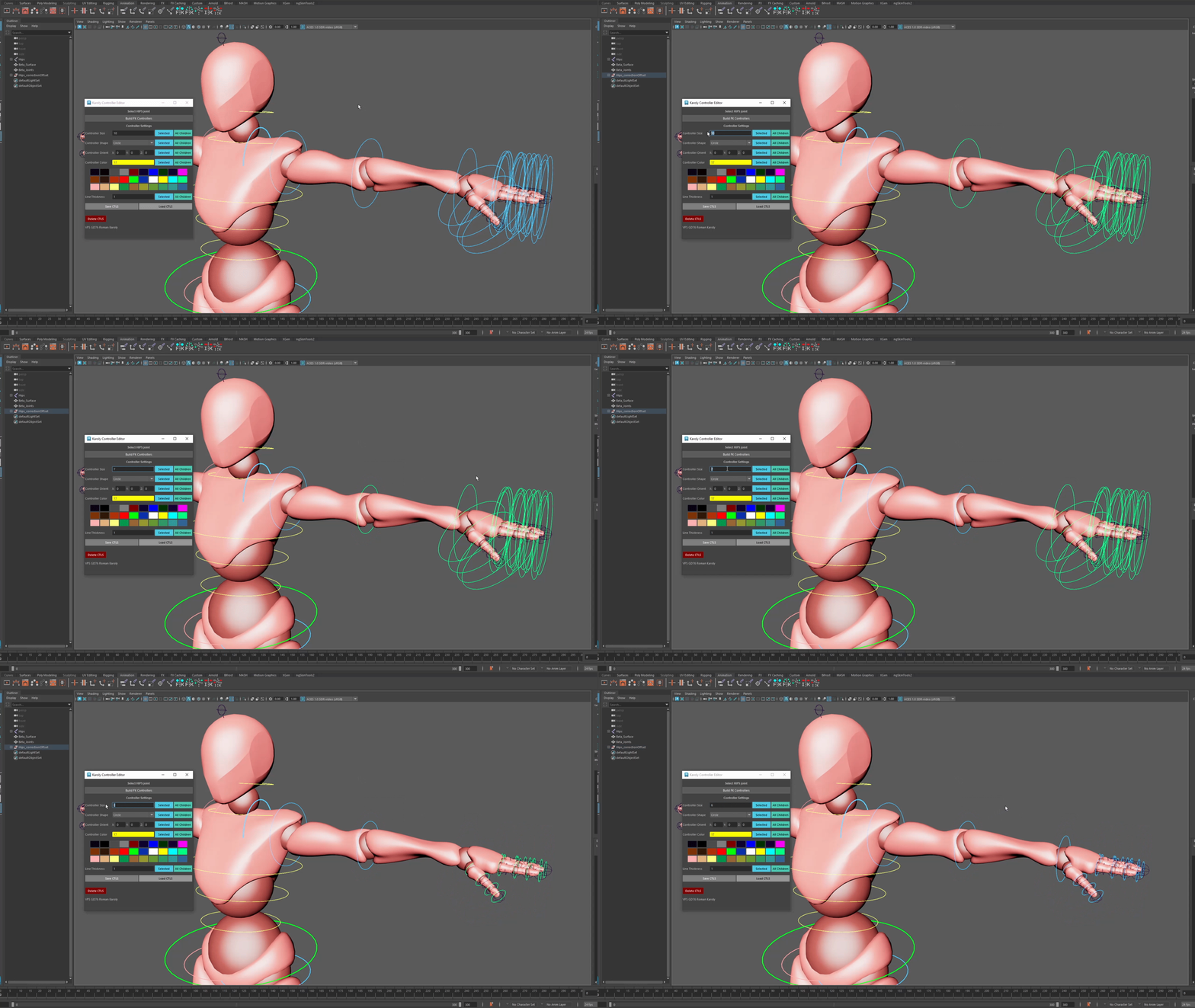
Change controller size
The "Controller Size" tool can be used to modify the scale of any selected/ all descending controllers.
Instructions:
1) Select controller(s)
2) Enter a number you want the controller to be scaled by
3) Click Selected/ All Children
Controller Shape
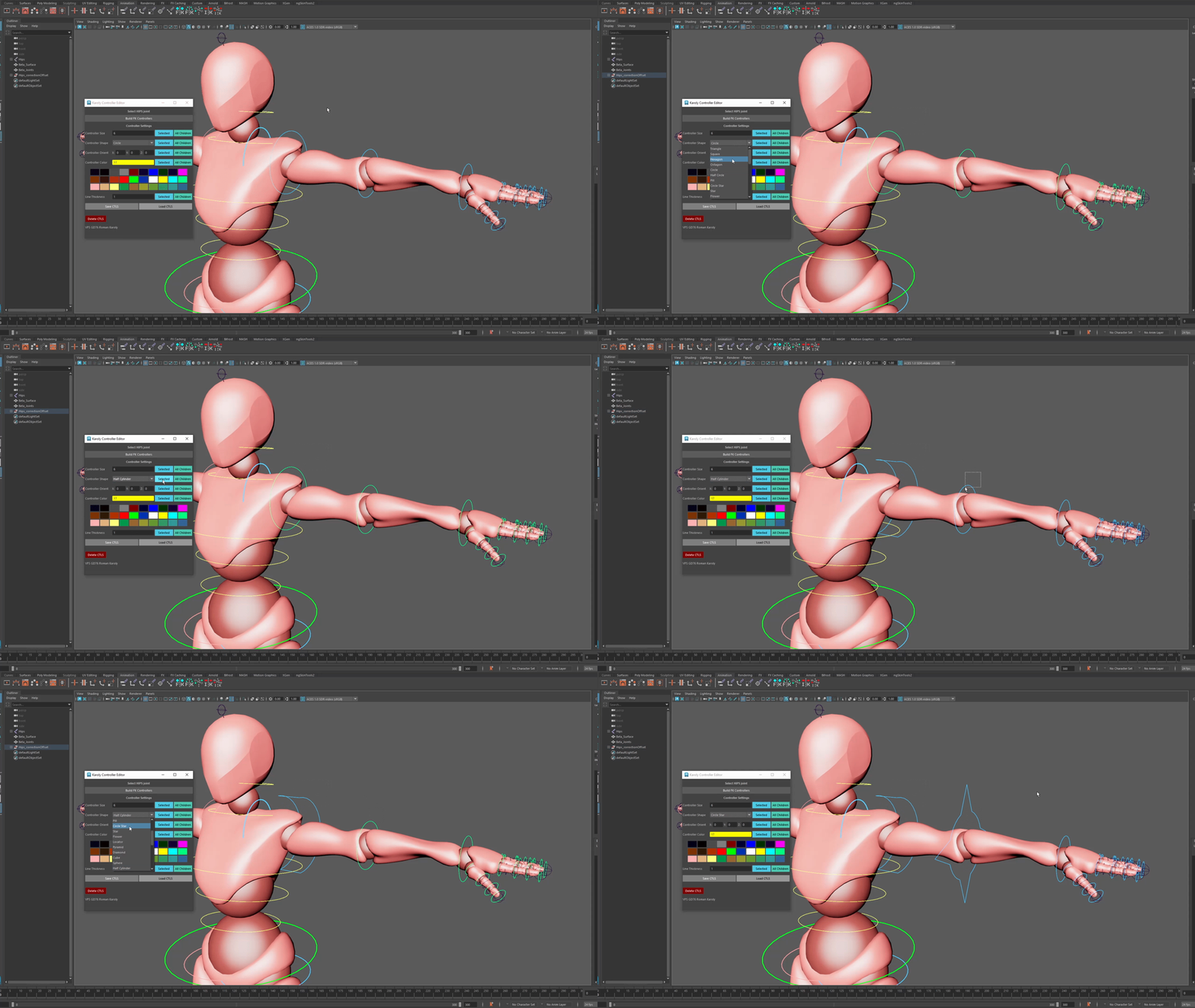
Change controller shape
The "Controller Size" tool can be used to replace the shape of any selected/ all descending controllers. This tool works by selecting a shape from the drop down, and there are currently 30 types of controllers to choose from.
Instructions:
1) Select controller(s)
2) Pick a shape from the drop down menu
3) Click Selected/ All Children
Controller Orient
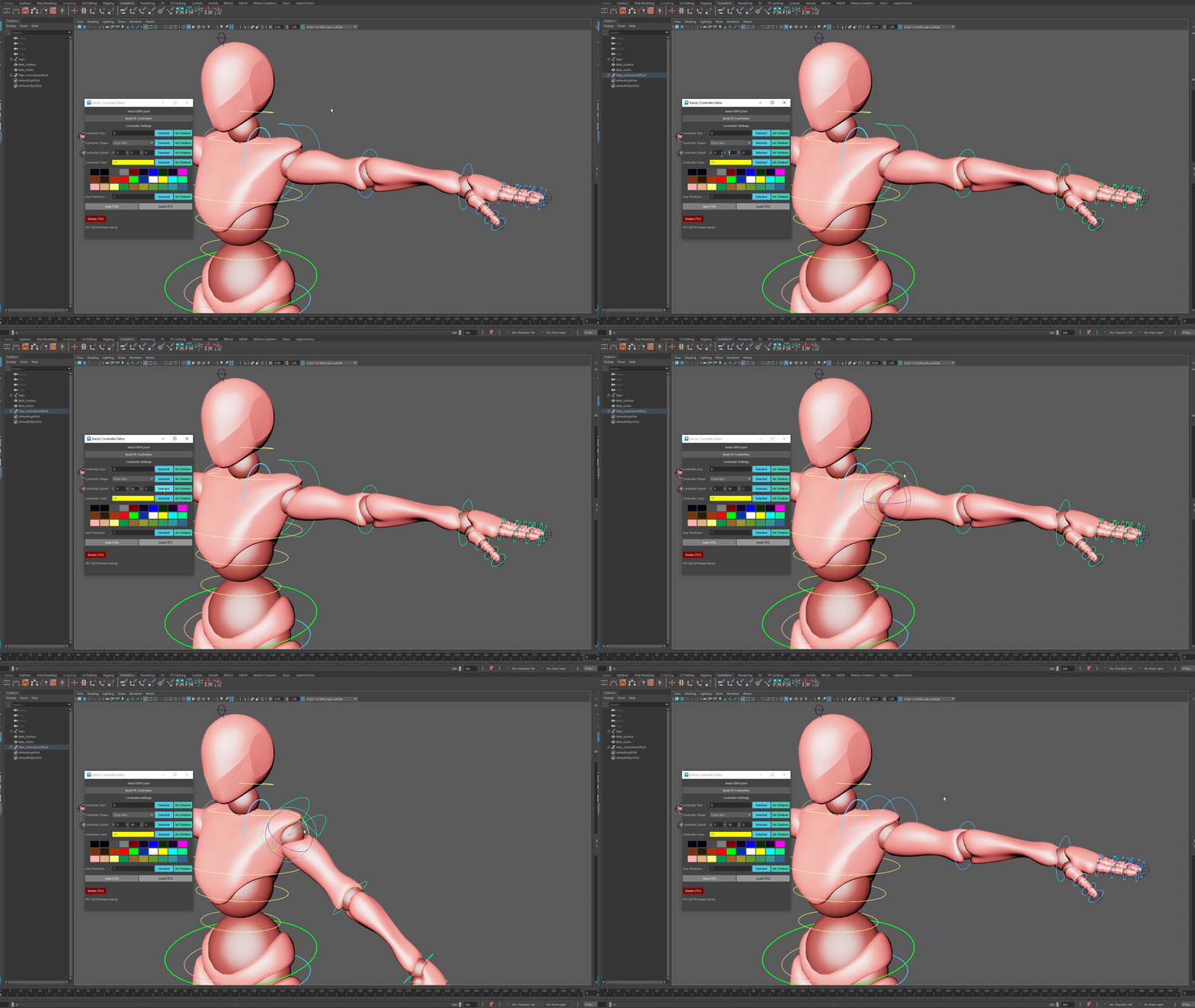
Change controller orientation by 90° on the Y axis
The "Controller Orient" tool can be used to modify the orientation of any selected/ all descending controllers. This can be used when a new controller isn't aligned properly and needs to be reoriented. This tool works by rotating just the CVs according to the rotation transform specified RELATIVE to the pivot point. In the above example, the controller is rotated 90° on the Y axis to align with the top of the shoulder. The controller orientation itself will NOT be changed, only the visual controller shape will.
Instructions:
1) Select controller(s)
2) Enter rotation values in X, Y, Z
3) Click Selected/ All Children
Controller Color
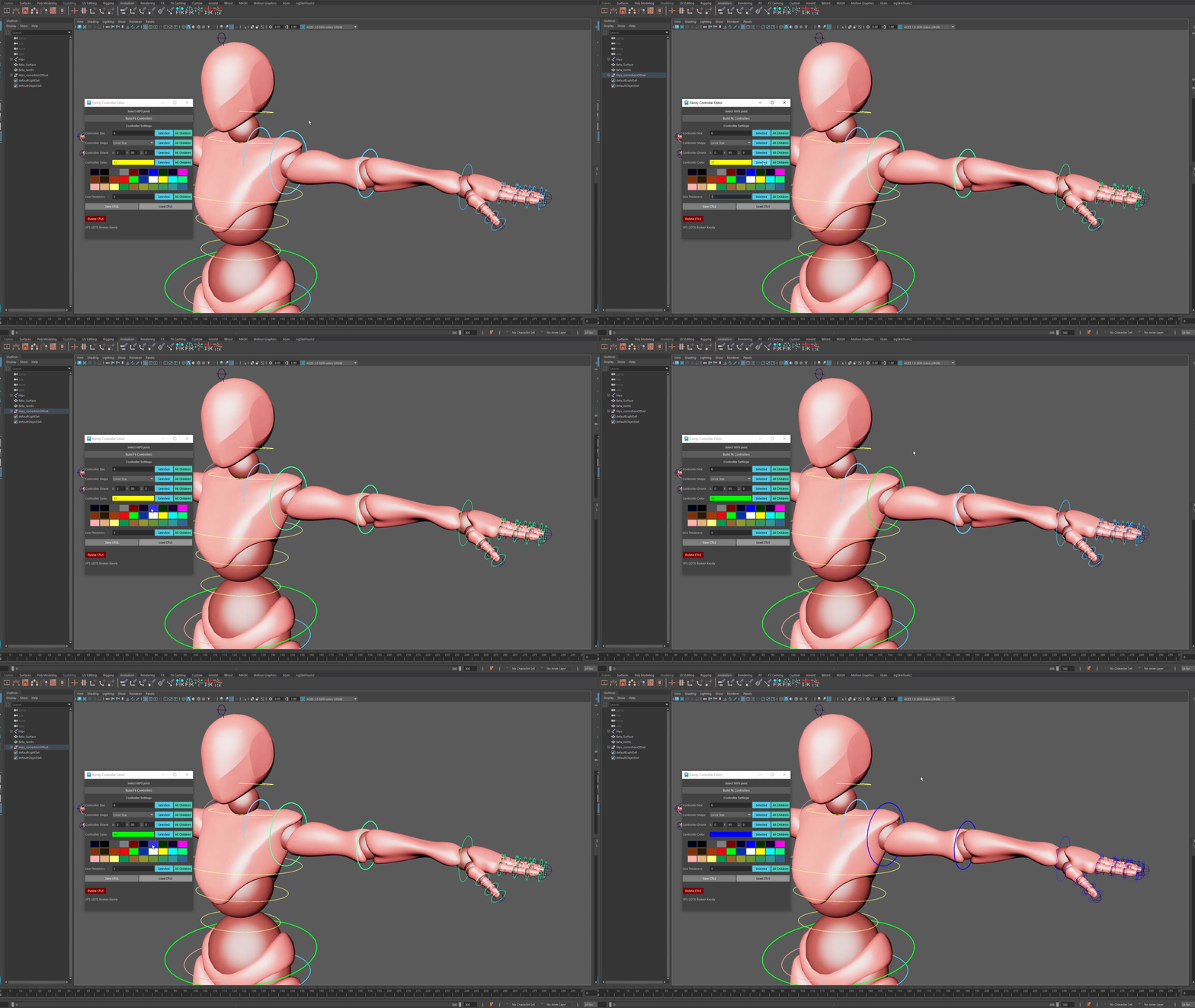
Change controller color
The "Controller Color" tool can be used to modify the color of any selected/ all descending controllers. This uses the default Maya color index, custom colors CANNOT be made from this tool. This tool works by selecting any of the colors in the menu below the tool.
Instructions:
1) Select controller(s)
2) Select a color from the color menu
3) Click Selected/ All Children
Controller Thickness
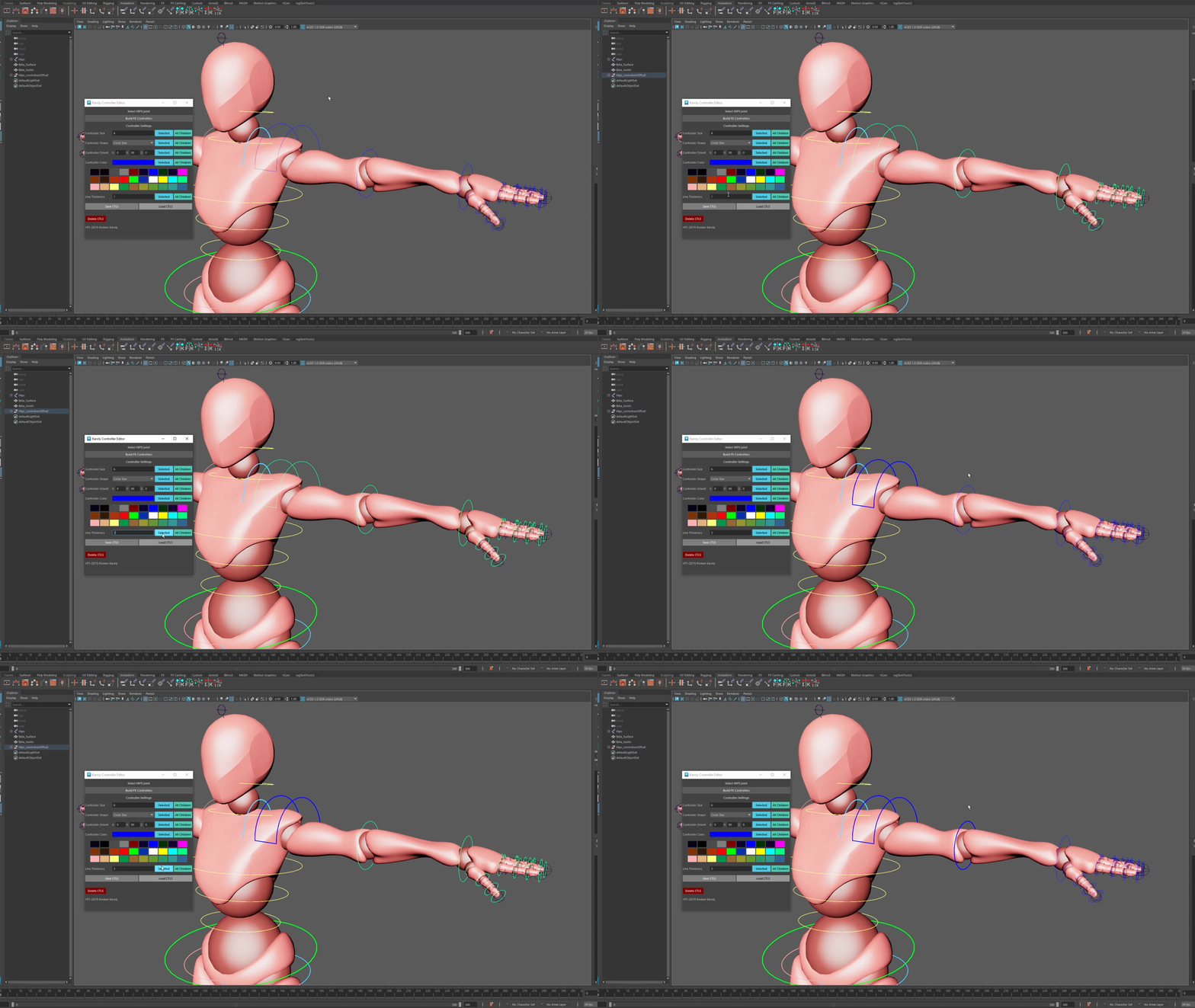
Change controller color
The "Line Thickness" tool can be used to modify the line thickness of any selected/ all descending controllers. Warning: Overly thick lines can sometimes clip through geometries.
Instructions:
1) Select controller(s)
2) Enter a number you want the line thickness to be scaled by
3) Click Selected/ All Children
Controller Save/ Load
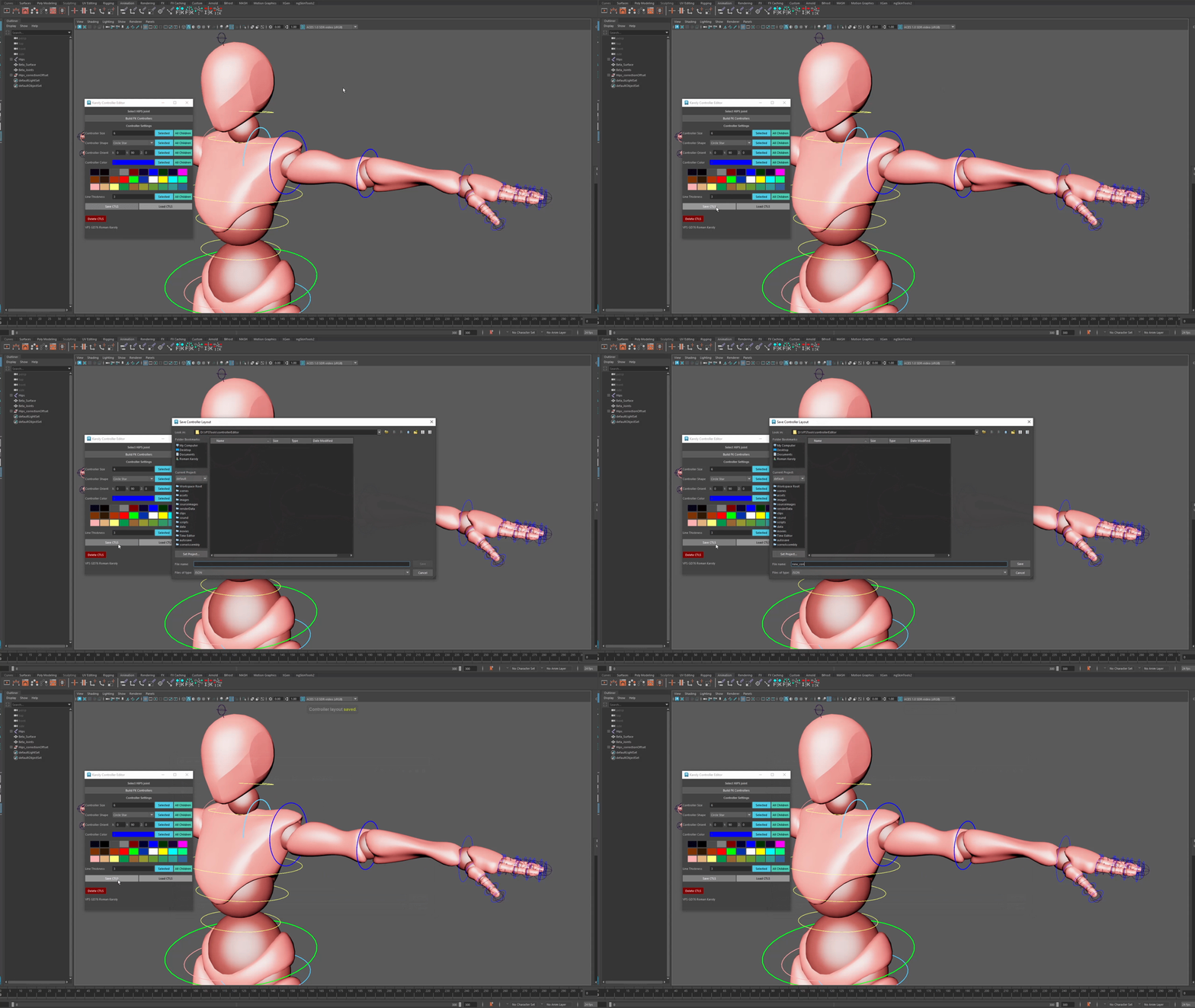
Save current controller layout
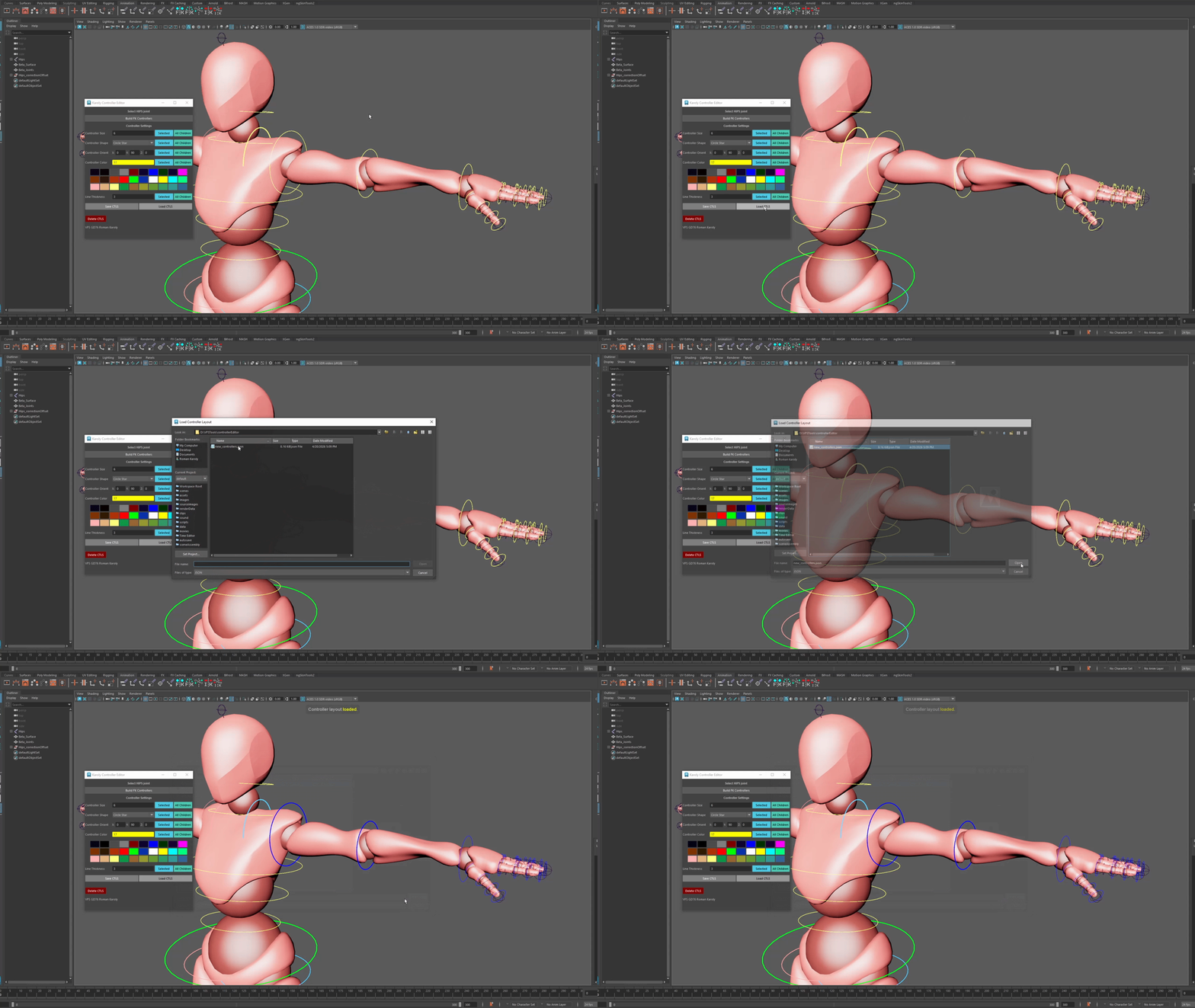
Load saved controller layout
The "Save CTLS" & "Load CTLS" tool can be used to save/ load controller layouts. Saving works by getting all controllers in the scene (no matter the selection), getting their info, and saving it to a json file. Loading works by importing a saved json file containing a controller layout. In order to ensure proper loading, ensure controller hierarchies and names are the same and no extra controllers were added/ deleted.
Instructions:
1) Click "Save CTLS" button
2) Choose save destination and enter file name
3) Click "Load CTLS" button
4) Choose saved controller layout
FK Single Mirror
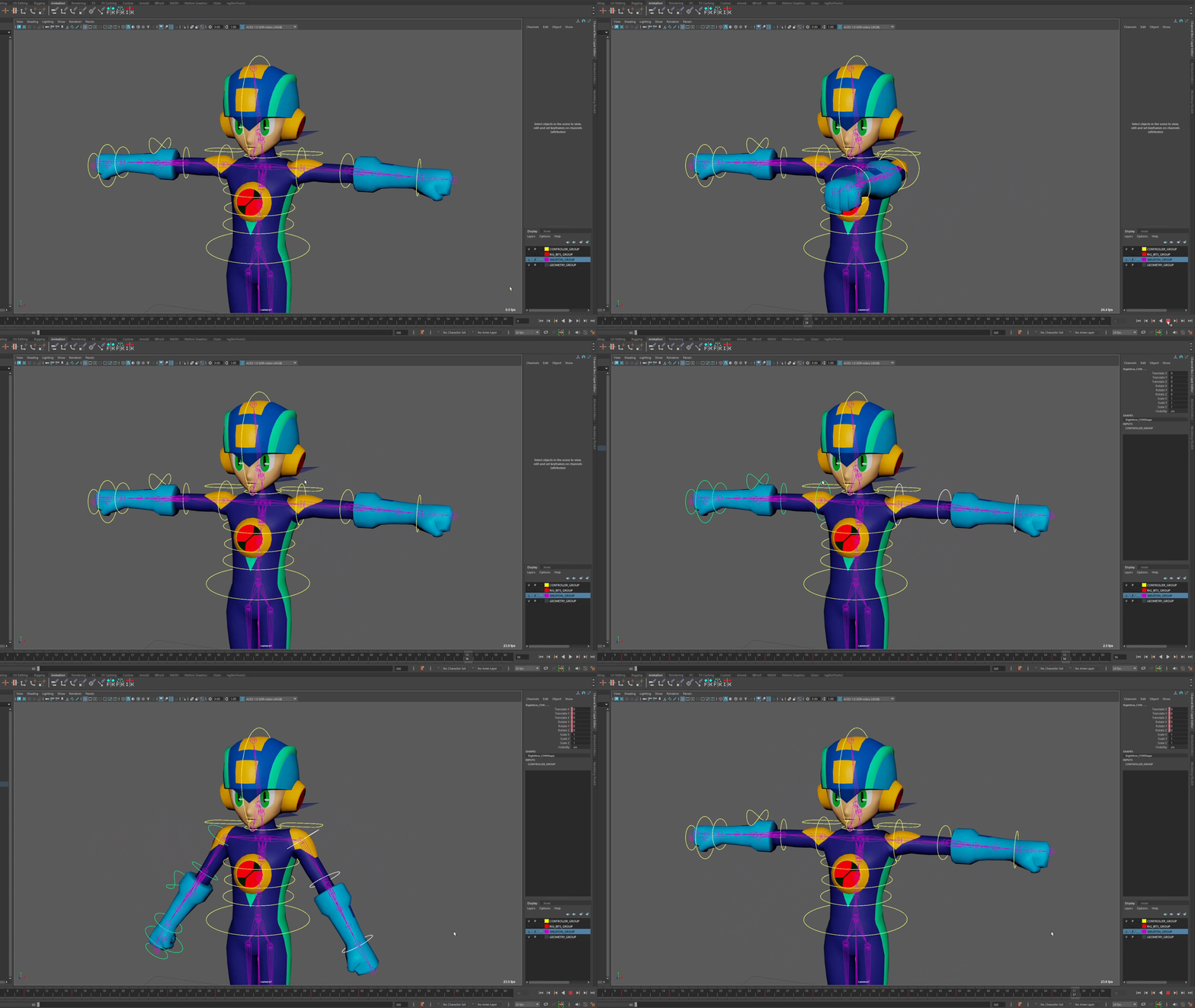
This tool is used to mirror animation from ONE FK controller to another. This works by copying keyframes and pasting them exactly to the destination controller. Can work on any controller in any hierarchy.
Instructions:
1) Select source controller
(ex: left shoulder)
2) Shift select destination controller
(ex: right shoulder)
3) Click button
FK All Children Mirror
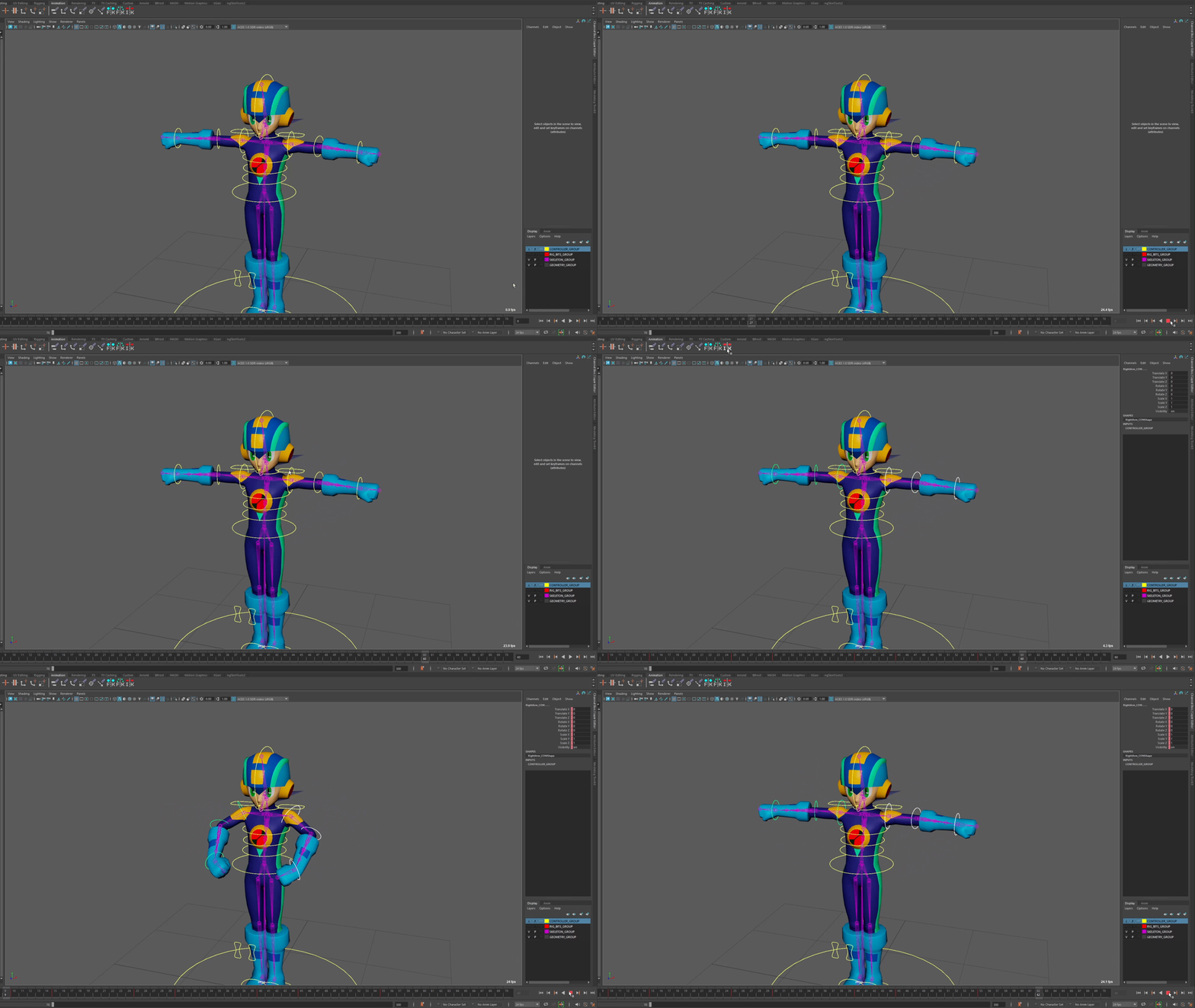
This tool is used to mirror animation from a controller and ALL children under it. Outliner hierarchy MUST mirror, will not work on different hierarchies.
Instructions:
1) Select source top parent controller
(ex: left shoulder)
2) Shift select destination top parent controller
(ex: right shoulder)
3) Click button

IK Single Mirror
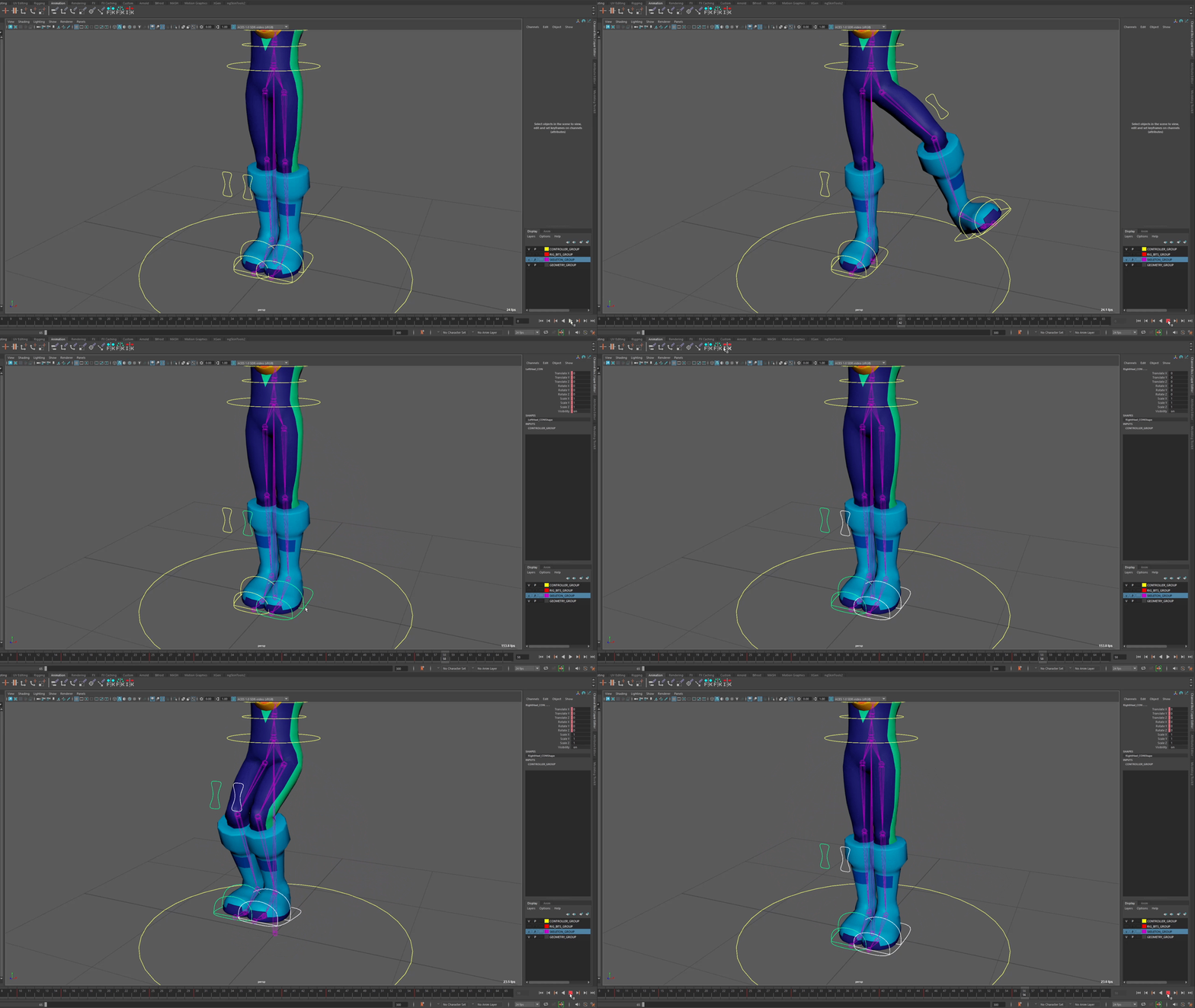
This tool is used to mirror animation from ONE IK controller to another. This tool works by copying animation from the source controller, pasting it to the destination controller, and modifying transform & rotation values so it mirrors properly. Can work on any controller in any hierarchy.
Instructions:
1) Select source controller
(ex: left foot IK)
2) Shift select destination controller
(ex: right foot IK)
3) Click button
Inverse Mirror Animation Tools Instructions & Important Notes
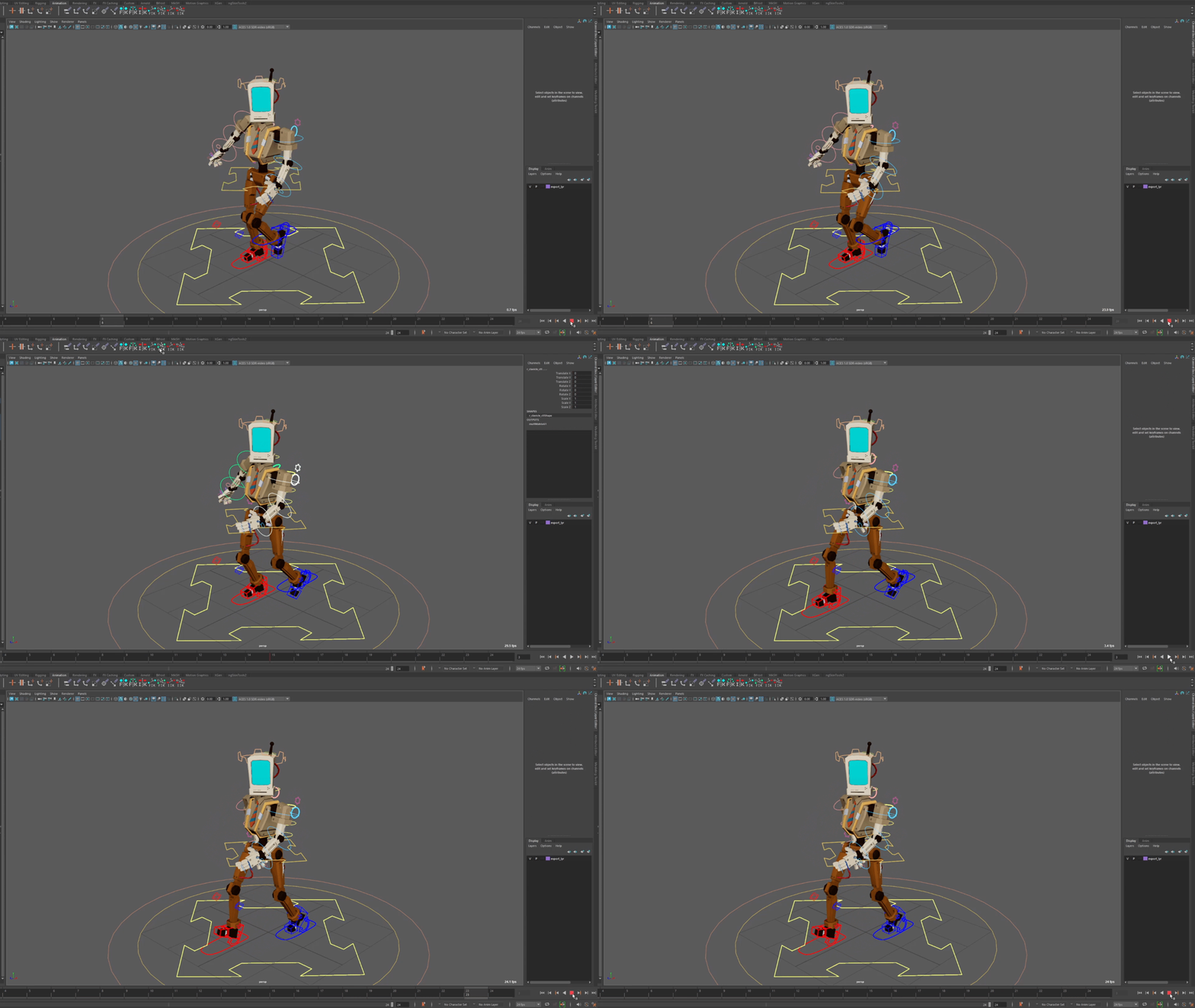
Example use of inverse mirroring arm animation
NOTE: These tools are a work in progress and may result in buggy behavior.
These tools are used to mirror animation from one side to another along an offset so that it appears "inversed". They're primarily meant to be used with animating cycles, but they can be used for other scenarios. Unfortunately these tools could be better, however I designed these to be used by students with various different set ups, so I had to try to make something that could "fit all". This means that there were some features and limitations I haven't figured out just yet.
These tools can work with ANY naming convention, on any limb chain (not limited to just arms or legs, but can also be used for things like ears or wings), and (mostly) any frame range. They can also work on mirrored limb chains that aren't spatially mirrored (like if one arm is shorter than the other, the animation will still carry over).
These tools WILL NOT work with hierarchies that aren't mirrored or controller chains that have different orientations. This tool can technically work with odd numbered frame ranges, however the result won't be the best. It is BEST to keep the frame range EVEN.
IDEAL SETUP BEFORE MIRRORING:
For this tool to work as desired, 2 aspects need to be set.
1) Hierarchy order mirrors
2) Animation loop is completed

Example time range: 0 - 24 frames. Middle frame = 12
IMPORTANT NOTE:
The animation loop matters! This tool identifies the middle of the keyframes and uses that to offset the copied animation on the other side.
What does this mean?
It means that you've got to be a bit careful. In the above example, frame 12 is in the median of frames 0 - 24. There are NO keys outside this range. If keys are added outside of the main loop, the middle will then be offset and won't be 12, therefore the inverse mirror won't be correct. Below is an example of a correct vs wrong approach.

Loop is completed in frames 0 - 24.

Loop goes beyond frames 0 - 24.
In this example, we can identify 2 scenarios that would cause the tool to work incorrectly. If there were a couple of frames outside the completed range, that would mess up the loop.
But what about a completed loop that repeats again?
This would break as well. In the correct example, the loop has the same keyframes on both ends, with one opposite keyframe in the middle. This middle keyframe is important. In the wrong example, for frames 0 - 48, frame 24 is the new middle. This is an issue because the keyframe here is the same as the ends that complete the loop. You ALWAYS want the middle keyframe to be the "opposite" frame.
WHAT HAPPENS?
After using the tool, this will be the result.
BEFORE
AFTER

"But wait, this has keyframes outside the loop!"
When the animation is mirrored, the selected controller has the animation loop copied and pasted on both sides in the destination controller. This is for 2 reasons:
1) Animation cycles that are offset slightly (ex: 3 - 27) will have completed loops on both sides so there is no non-animated side.
2) With 3 completed loops, this allows the newly animated side to be able to be mirrored to the original side again. Say you mirrored animation to the left side, tweaked animation over there, then wanted to mirror back to the right side, this allows that. This is because the middle "opposite" keyframe is still in the exact middle of the range (ex: frame 12 is still the middle of -24 - 24).
The original side does NOT get any extra animation, it will stay as is. Only the destination controller will have extra keyframes.
If you mirror back to the original side, please note that you will have a lot of extra keyframes being pasted, but you can delete everything outside the intended range.
I'm still working on this tool to eliminate all the extra complications, I'm aware this isn't the easiest thing to follow.
FK Single / All Children Inverse Mirror
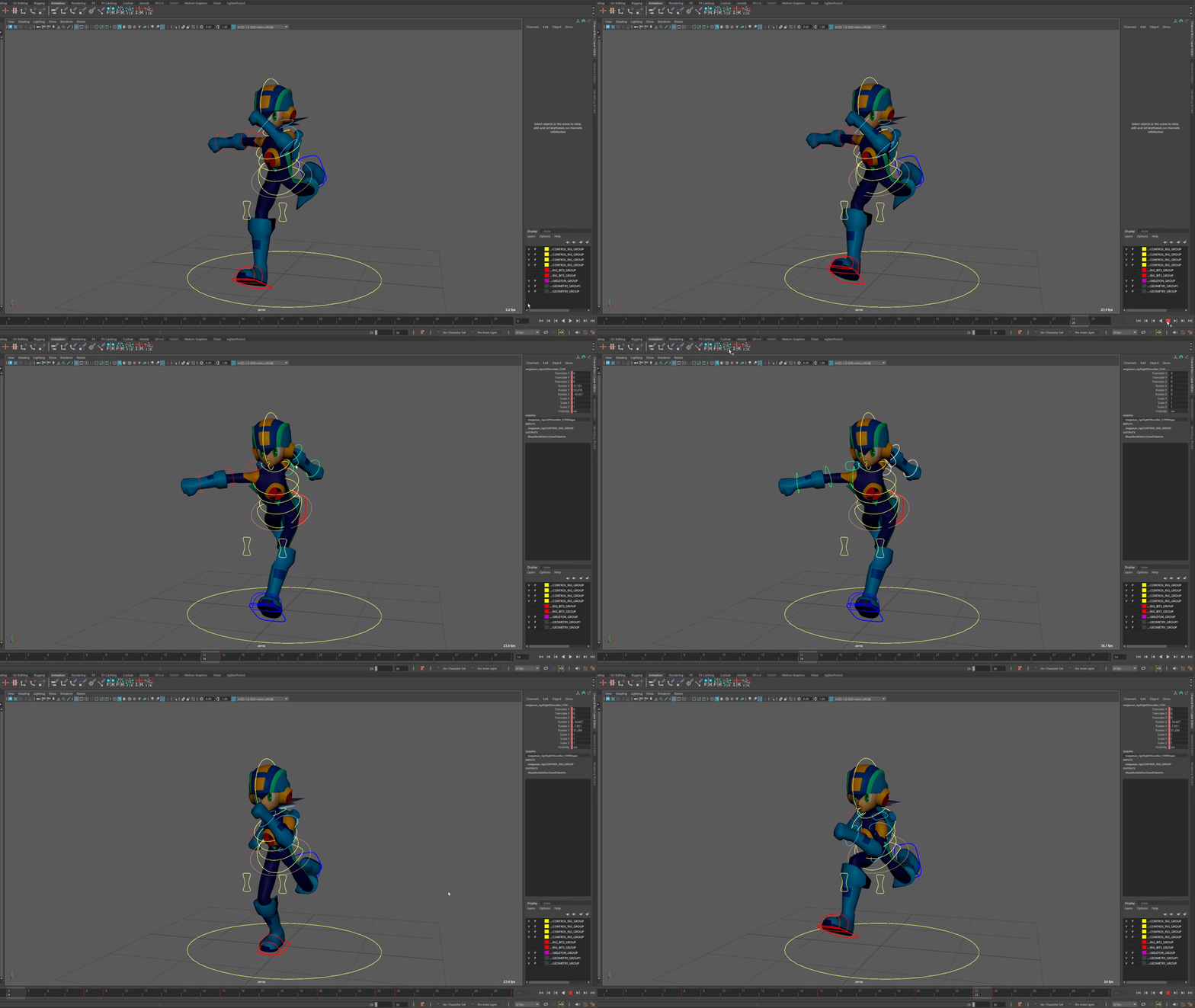
Example time range: 0 - 24 frames. Middle frame = 12
This tool is used to inverse mirror animation for an FK chain. This tool works by copying animation from one side, pasting it to the other, and offsetting the keyframes. Outliner hierarchy MUST mirror, will not work on different hierarchies. It is highly encouraged to have an even number keyframe range.
(examples: 0 - 24, 0 - 30)
Instructions:
1) Select source top parent controller
(ex: left clavicle)
2) Shift select destination top parent controller
(ex: right clavicle)
3) Click button
IK Single / All Children Inverse Mirror
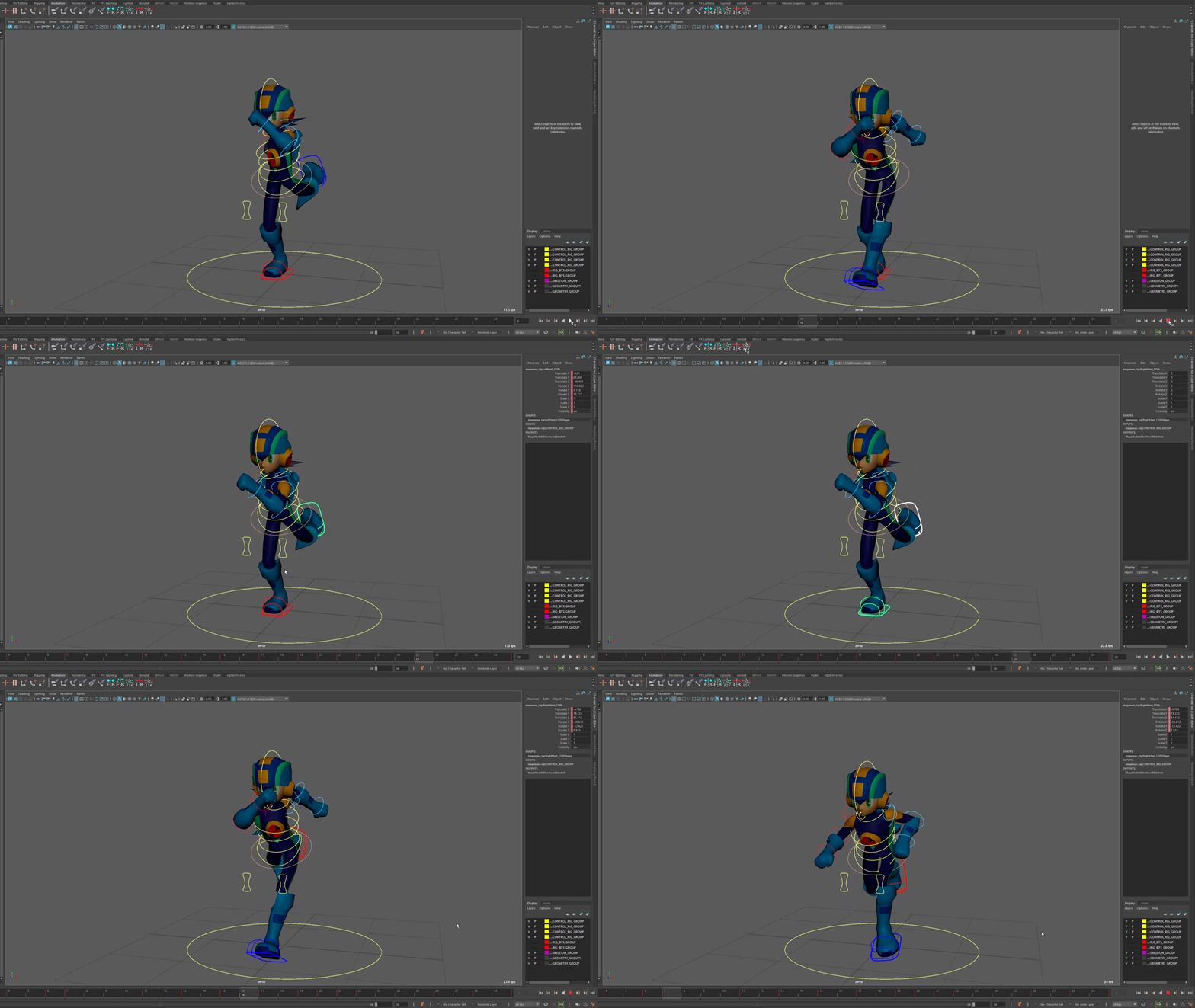

Example time range: 0 - 30 frames. Middle frame = 15
This tool is used to inverse mirror animation from an IK controller to another controller. This tool works by copying animation from the source controller, pasting it to the destination controller, modifying transform & rotation values, and offsetting the animation. Outliner hierarchy MUST mirror, will not work on different hierarchies. It is highly encouraged to have an even number keyframe range.
(examples: 0 - 24, 0 - 30)
Instructions:
1) Select source top parent controller
(ex: left foot IK)
2) Shift select destination top parent controller
(ex: right foot IK)
3) Click button
bottom of page